
Soniq Studio puts your billing name, billing address and logo at the top of every invoice. On the Tax & compliance page you tell Soniq Studio about your tax position, and Soniq Studio puts those details on the invoices you create.
Soniq Studio records the choices you make. It does not decide whether you need to register for VAT, or which tax treatment applies to what you charge. If you are not sure, read Register for VAT on GOV.UK or speak to your accountant. To find out why, read Why Soniq Studio does not give tax advice.
Before you start
- Know whether you are registered for VAT. If you are, have your VAT number to hand.
- If you trade as a limited company, have your company registration number to hand.
- Tax settings in Soniq Studio cover the United Kingdom today. Teachers in EU countries follow their own country’s rules, which differ from the UK’s.
Set your billing name, address and logo
- Select Account in the sidebar.
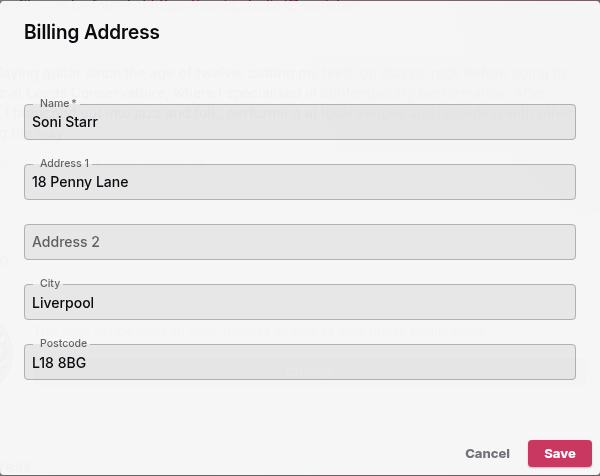
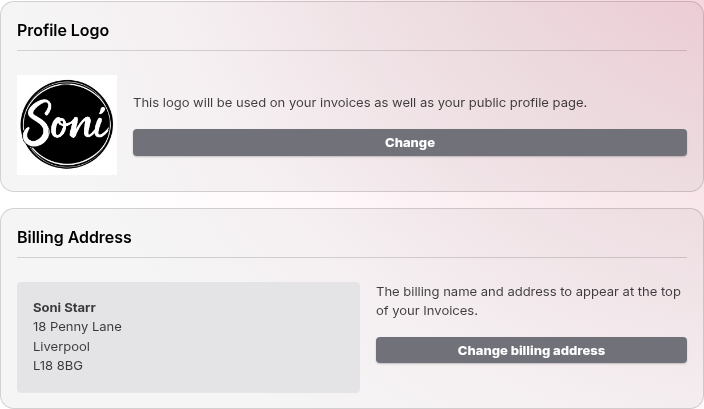
- Find the Billing Address card on the Profile page.
- Select Change billing address.
- Enter the Name you want on your invoices.
- Enter Address 1, Address 2, City and Postcode.
- Select Save.
To add your logo, find the Profile Logo card, select Change and choose your logo image. Your logo appears on your invoices and on your public profile page.
Open Tax & compliance
- Select Account in the sidebar.
- Select Tax & compliance.
The page has three cards: Tax registration, Company and Tax on your invoices. Each card has its own Save button. Every change applies to invoices you create from now on.
If you are not registered for VAT
Soni Starr is a sole trader who is just starting out. Soni is not registered for VAT, so Soni’s setup takes two choices.
- On the Tax registration card, answer Are you registered for VAT or another sales tax? with No. This is the starting answer.
- Select Save if you changed the answer.
- On the Tax on your invoices card, choose what your invoices say under When you’re not registered:
- Say I’m not registered: each invoice shows the note “No VAT — not VAT registered” under the total. It never shows a VAT line.
- Don’t mention tax: invoices say nothing about tax.
- Select Save.
The Preview under the card shows an example invoice made from your own prices, with the choices you have not saved yet.
Soni picks Say I’m not registered, so families can see why there is no VAT on their invoice.
If you are registered for VAT
- On the Tax registration card, answer Are you registered for VAT or another sales tax? with Yes.
- Check the Country. United Kingdom is the country Soniq Studio supports today.
- Check the Tax type. The country sets it to VAT.
- Enter your VAT number, as it appears on your registration. Soniq Studio checks that it looks like a UK VAT number, such as GB 123 4567 89, and shows how it will appear on your invoices. It checks the format only, not the registration itself.
- Select Save.
The card reminds you that Tax rates are set on each price. If some of your prices have no tax treatment yet, the card links to them with Review your prices. Until you set a treatment, invoice lines from those prices show no VAT.
The Tax on your invoices card now has no choice to make. Your VAT number, the rate on each line and a VAT total appear on every invoice, because a VAT invoice needs them.
Add your company number
If you trade as a limited company, you can show your company registration number on your invoices.
- On the Company card, enter your Company registration number (optional).
- Select Save.
Your invoices show it as “Company No.” under your name and address, whether or not you are registered for VAT. Leave it empty if you do not trade as a company.
Set the tax treatment on a price
When you are registered for VAT, each price has a Tax section. This is where you say how VAT applies to what you charge. You can charge for different things in different ways. For example, your lessons and the books you sell can each have their own tax treatment.
To set the tax on a new price:
- Select Prices in the sidebar.
- Select New price.
- Enter the Price name, choose Per hour or Flat and enter the Amount.
- Under VAT treatment, choose Exempt, Zero-rated, Reduced rate, Standard rate or No VAT on this price. Each choice says what your invoices will show.
- For Reduced rate or Standard rate, enter the VAT rate, and choose whether The amount Includes VAT or is Plus VAT.
- Check the summary under the form. It shows what the Customer pays, the VAT and what You keep.
- Select Save.
Soniq Studio fills in a starting choice from the rate type. These are only a starting point. Soniq Studio does not know which treatment applies to you, so check each one. If you are not sure which treatment applies, ask your accountant, or see the VAT guide (VAT Notice 700) on GOV.UK.
To change the tax on an existing price, open it from Prices and select Change price. Saving creates a new price and moves every contact on the old price to it.
To find out what each treatment means on an invoice, see Tax settings and tax treatments.
What your invoices show
Soniq Studio copies your tax details and each price’s tax treatment onto an invoice when it creates the invoice. Later changes to your settings or your prices do not change invoices you already created, including drafts. To change the tax on a draft, edit the price, then create the invoice again. To correct an invoice you have sent, use a credit note. See How to issue a refund, credit note, or lesson credit.
When you are registered, each invoice shows:
- your VAT number, and your company number if you added one,
- a Tax column with each line’s treatment,
- a Total before VAT,
- one VAT row for each rate or treatment on the invoice,
- the Total due.
The same details appear on the invoice page, the PDF, the invoice email, the contact portal and the payment page.